Integrate Wishlist Power into your Shopify POS
Wishlist Power brings your customers' wishlists to your store staff, right inside Shopify POS.
Set up
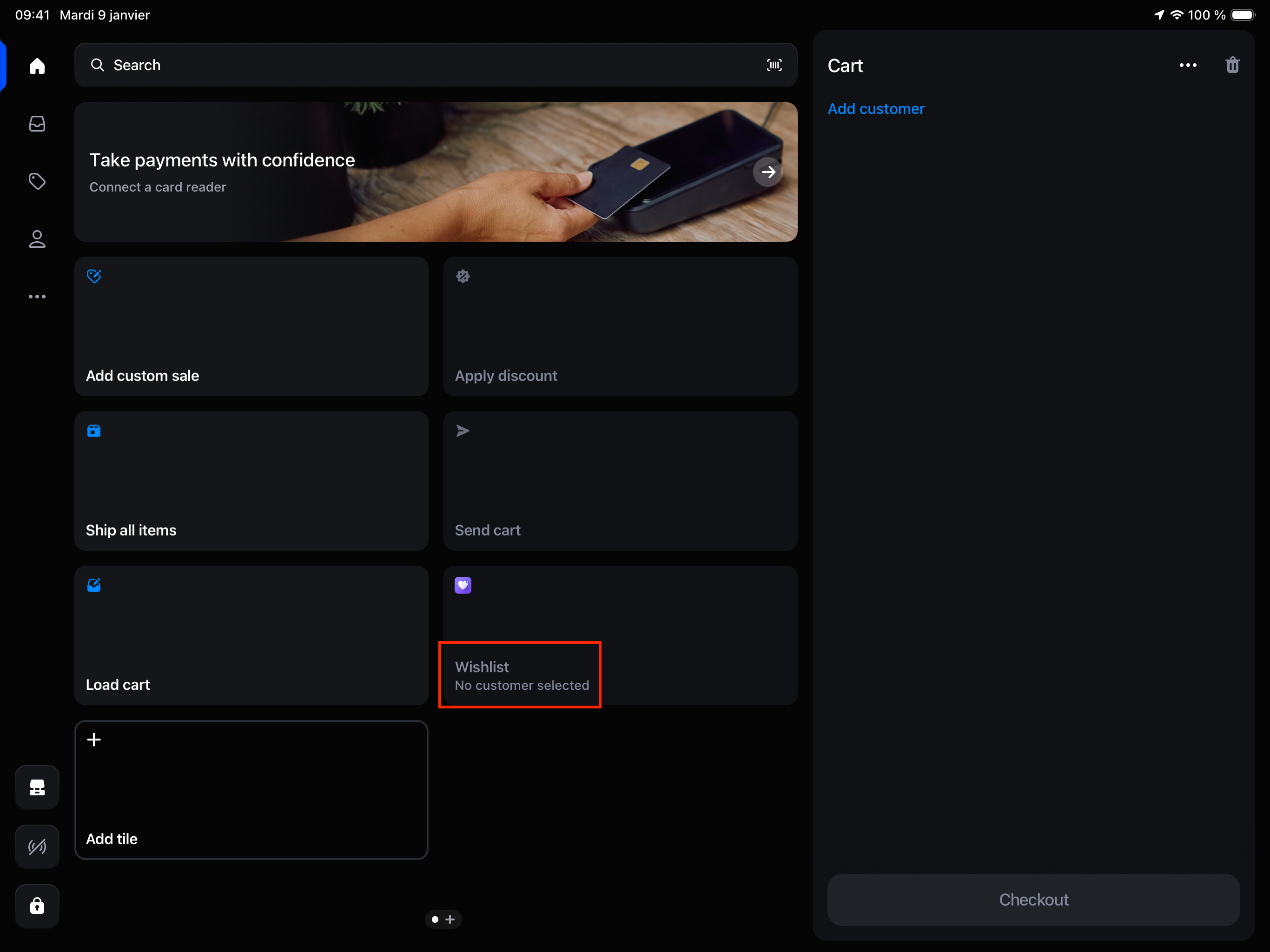
- In Shopify POS, tap "Add tile" on the smart grid, then App, and select Wishlist.
- The wishlist information on product and customer screens appears automatically.
Get access to a customer's wishlist
Add a customer to the cart, then tap the Wishlist tile. The badge shows how many products they saved.
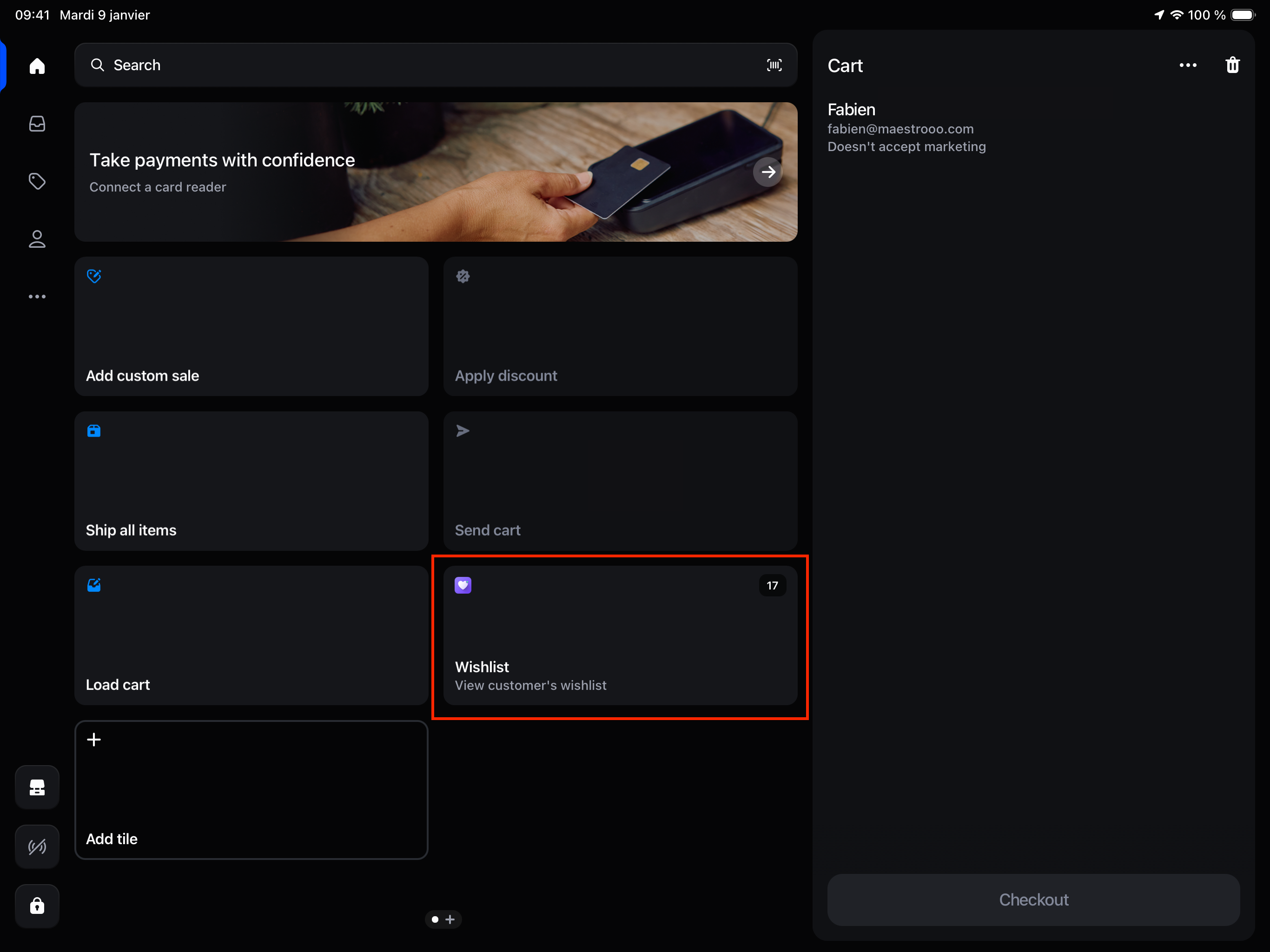
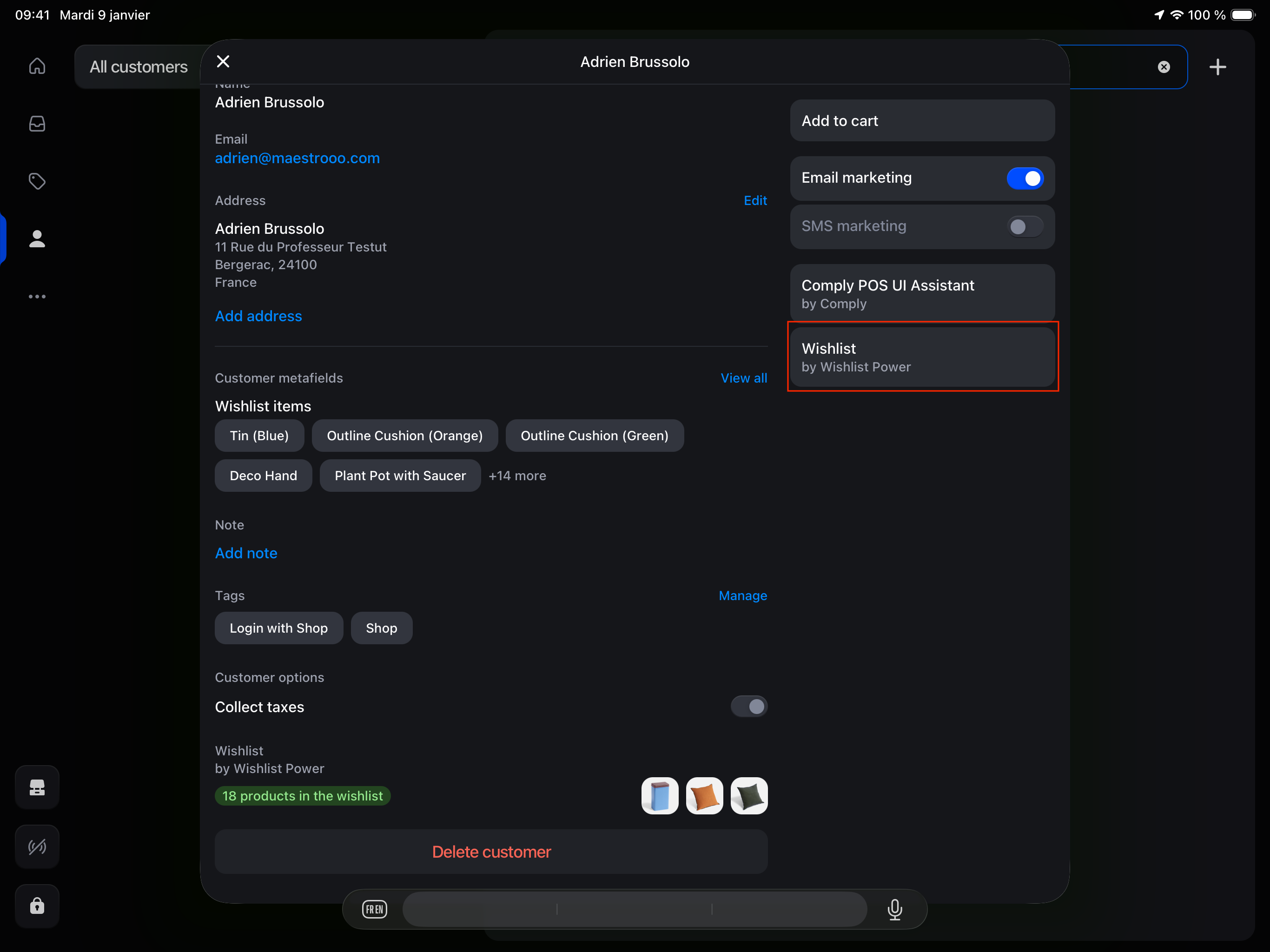
You can also open the customer's profile. A Wishlist section shows the number of saved products, and the Wishlist action opens the full list.
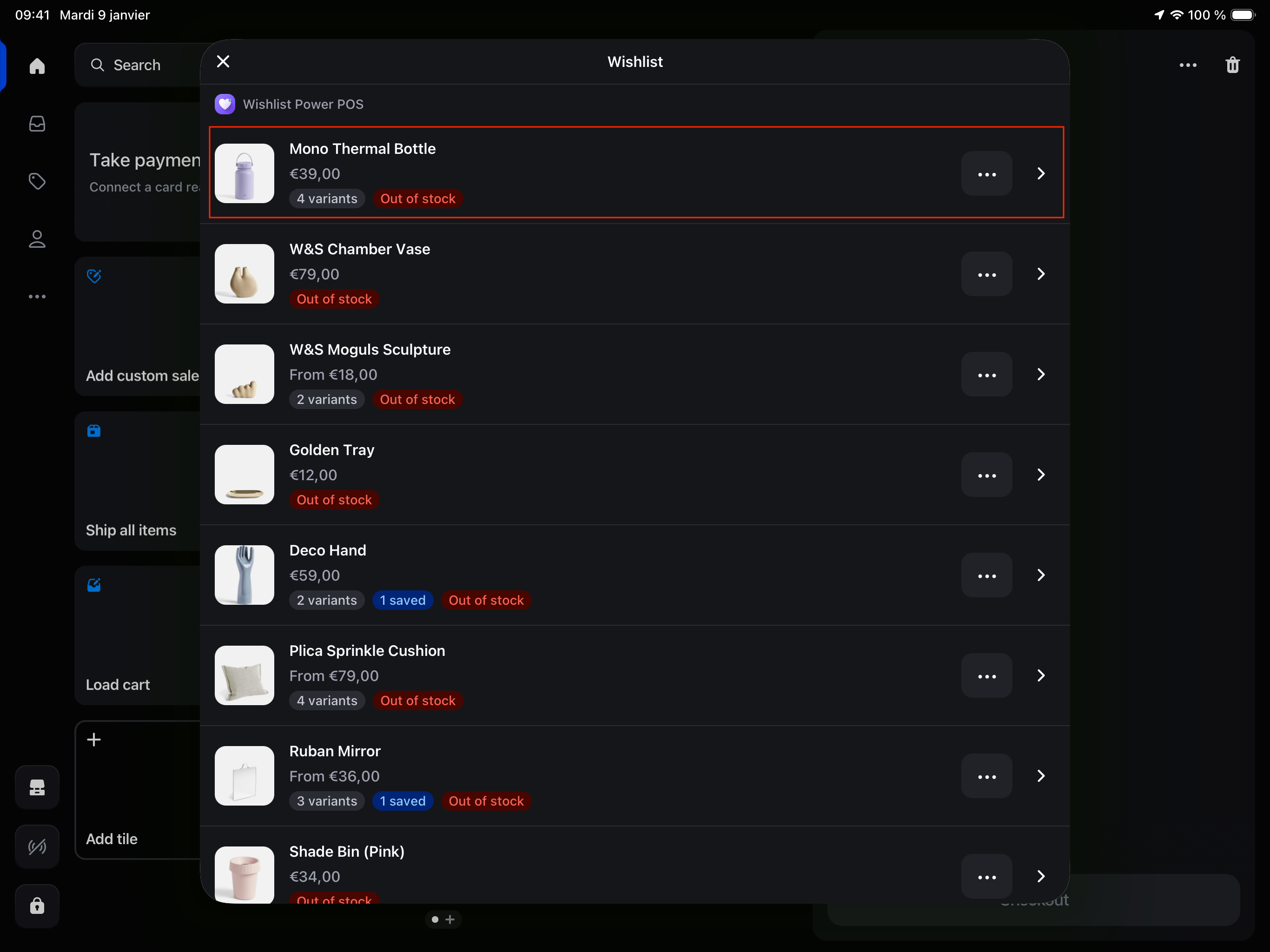
From the customer's wishlist you can:
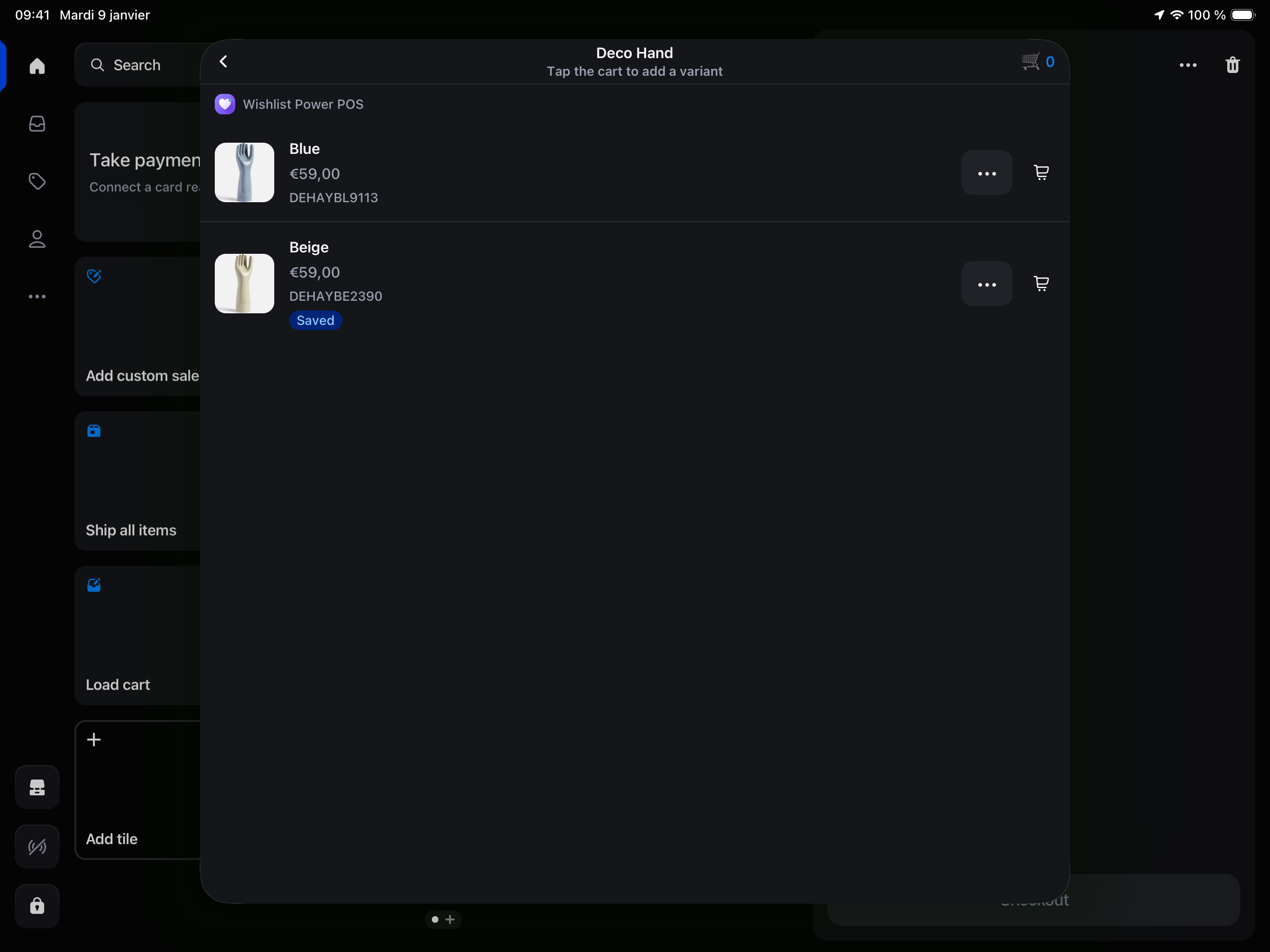
- Tap a product to see its variants, with the stock available at your location.
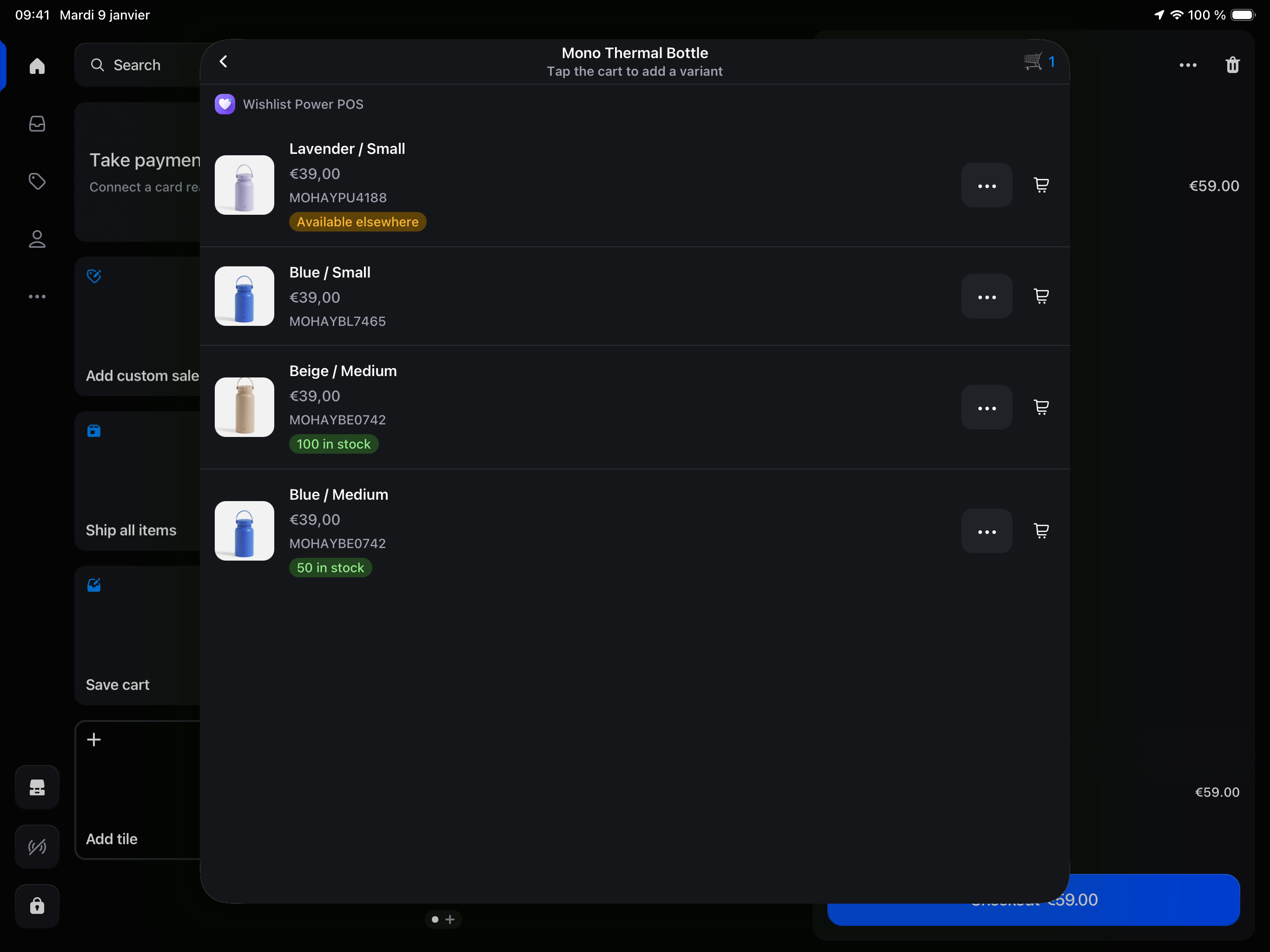
- Tap the cart icon to add a variant to the cart.
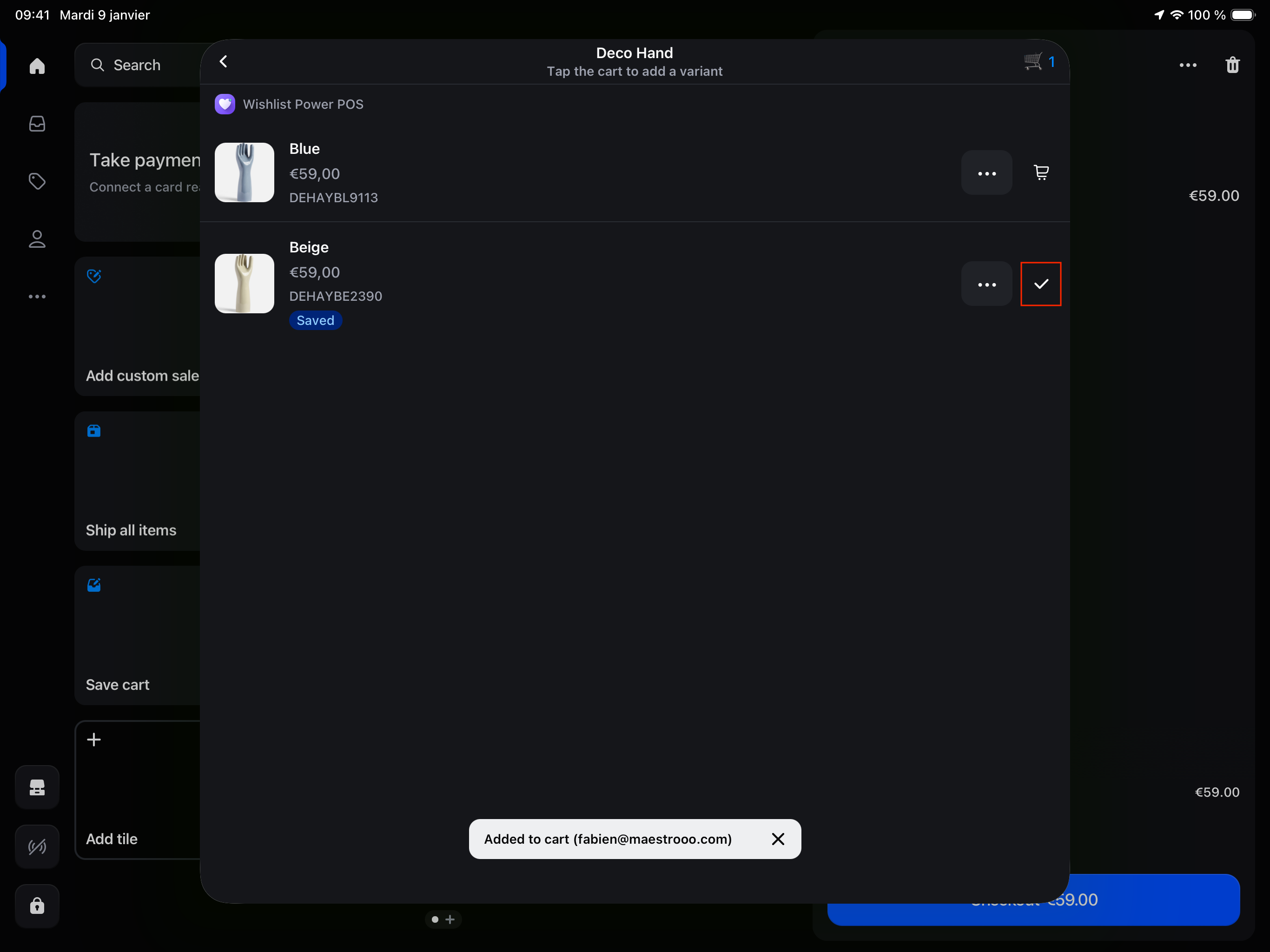
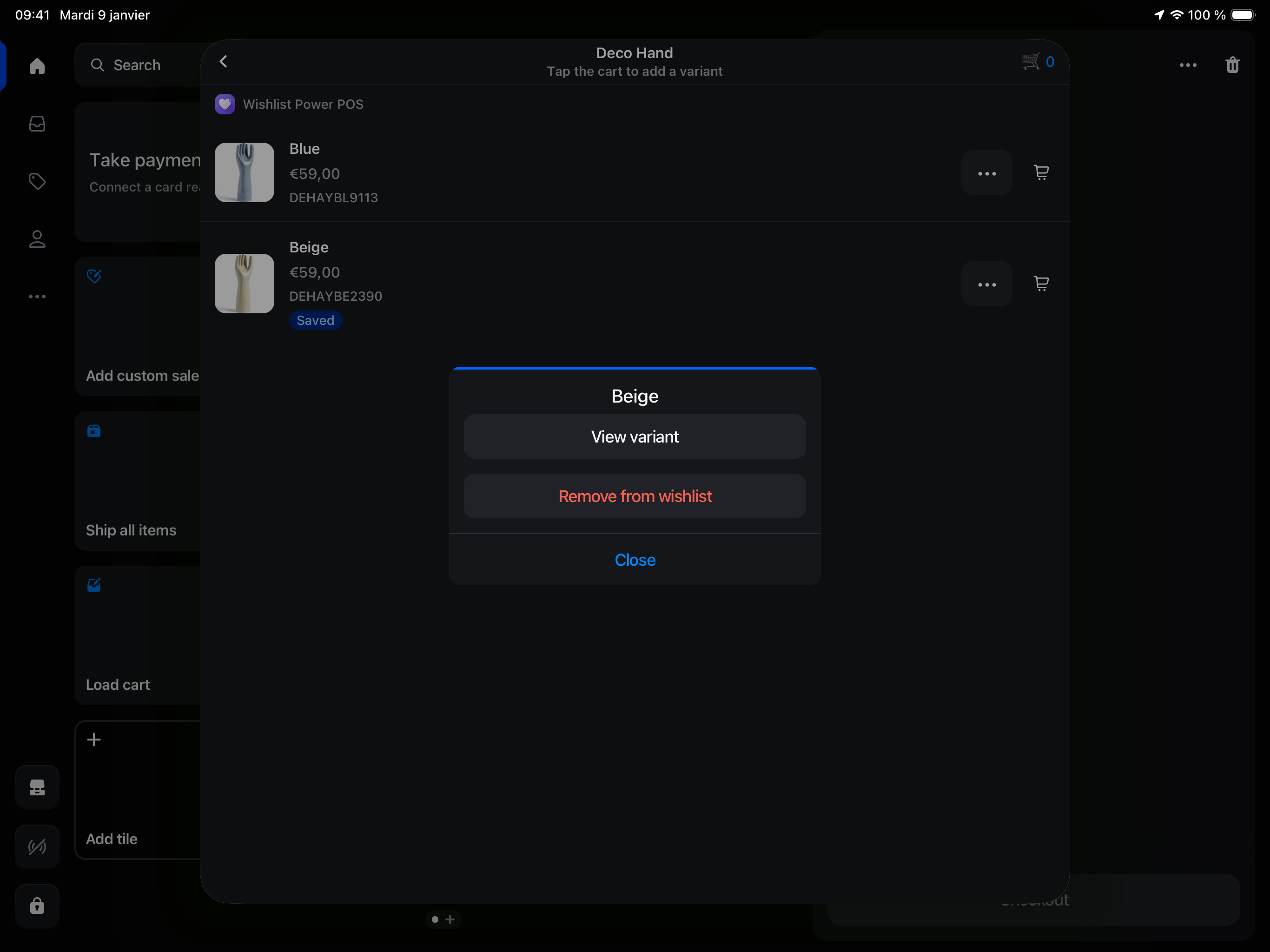
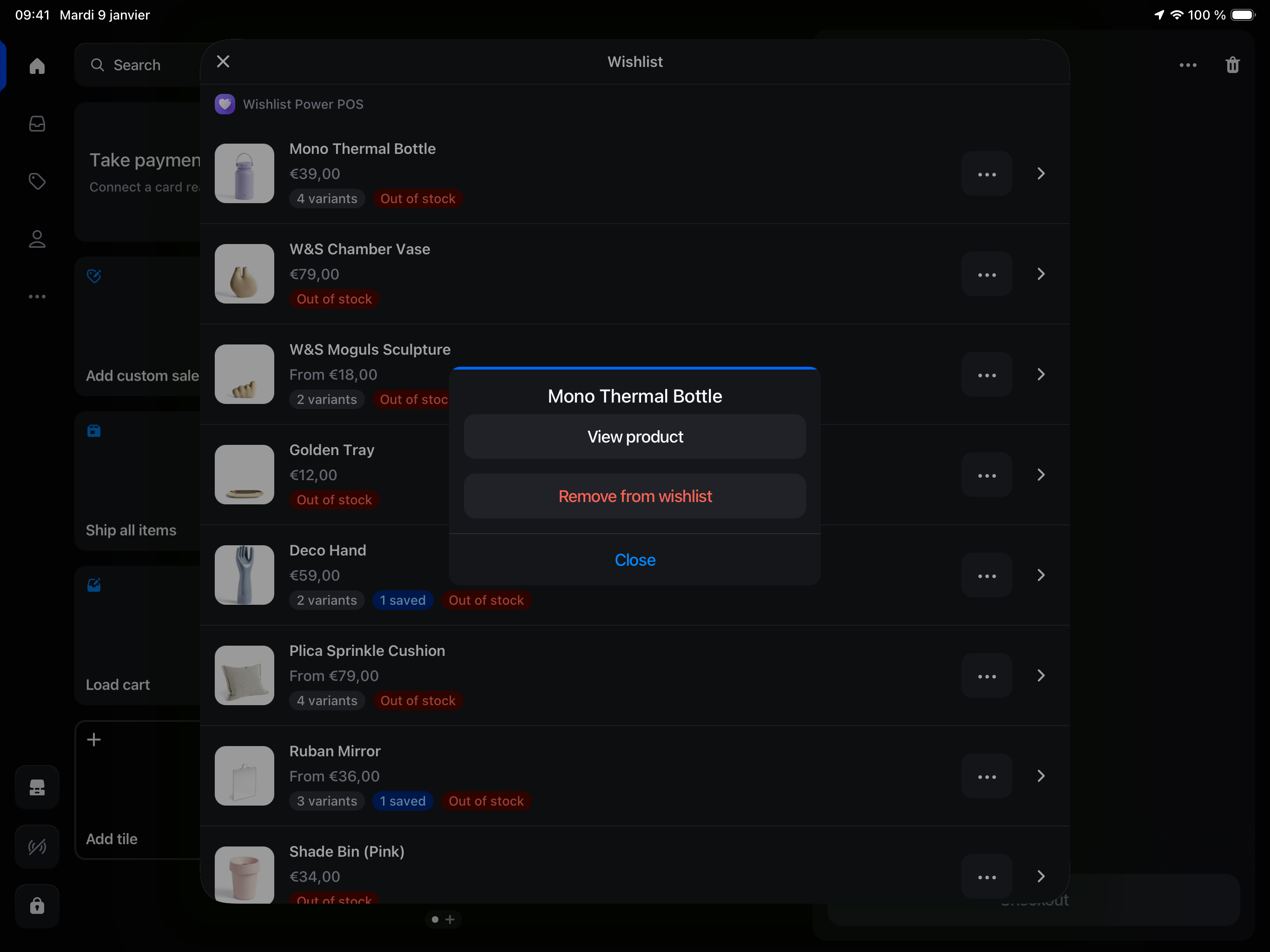
- Tap "•••" to view the product or remove it from the wishlist.
Product screen
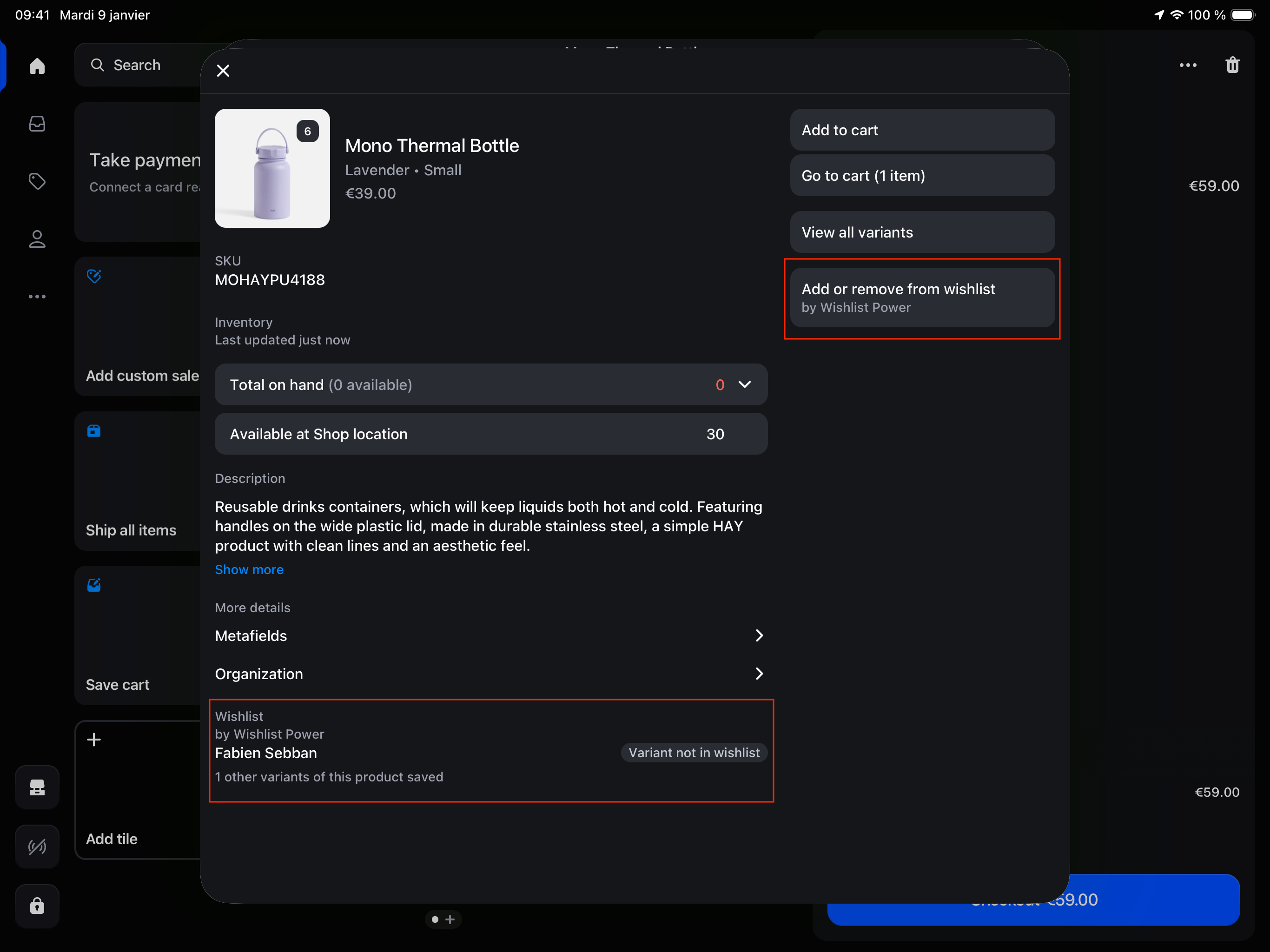
You can interact with the customer's wishlist from the product screen:
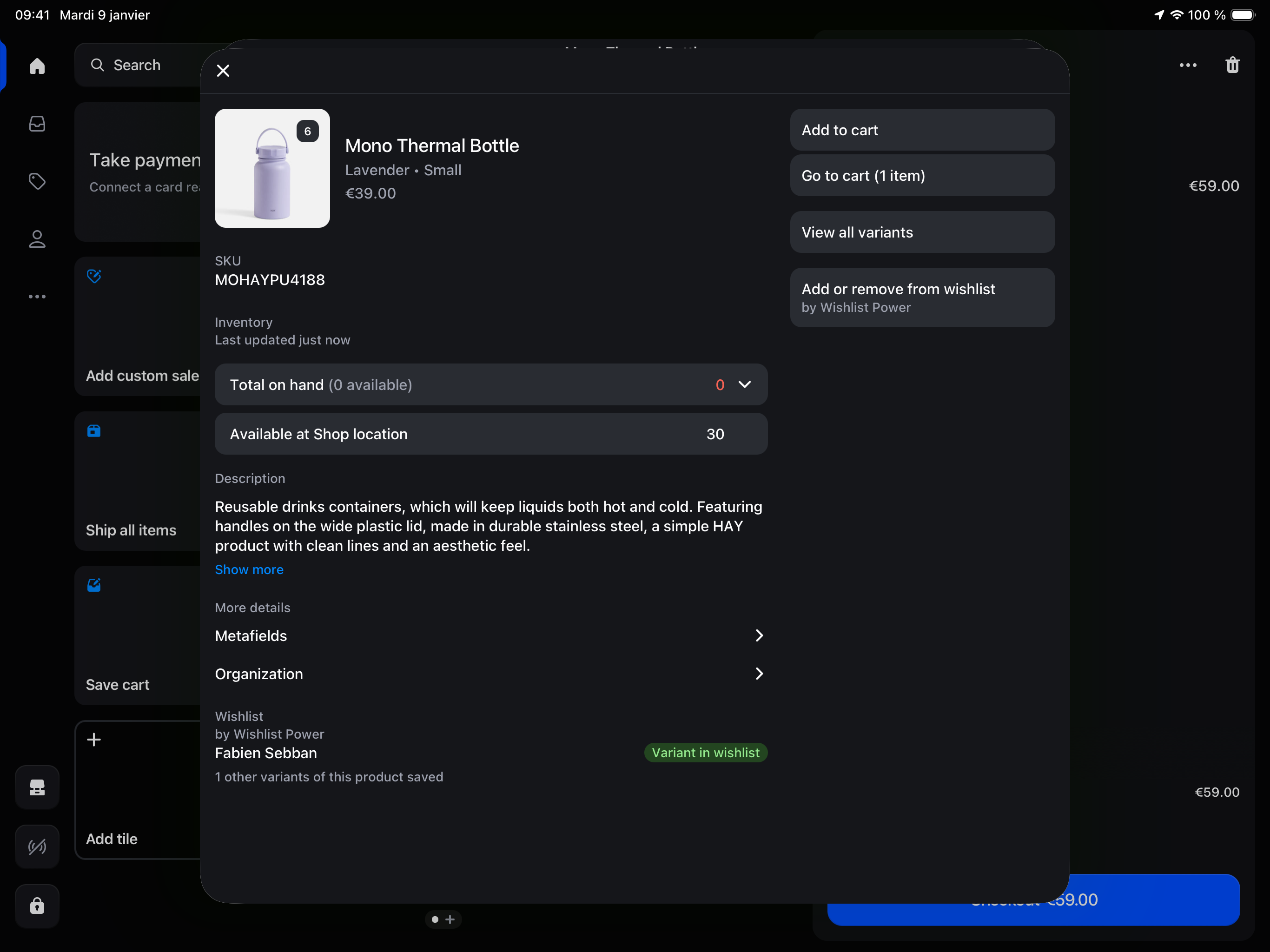
- A Wishlist section tells you whether the product is in the customer's wishlist.
- Use "Add or remove from wishlist" in the actions to update it.
Variant mode
If "Use variants" is enabled in the Wishlist setup app embed, the variants saved by the customer are flagged "Saved", and you can add or remove individual variants.